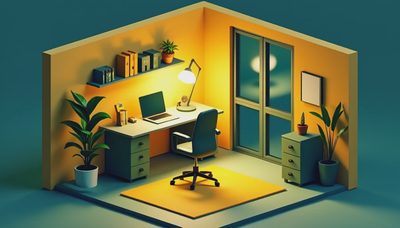


A good remote work setup is less about matching monitor stands and more about removing friction from an eight-hour workday. Your desk should support the equipment you actually use, your chair should keep your hips and elbows in workable positions, and the room should let you move without bumping into storage. I have built and rebuilt home offices in rooms from 8 by 10 feet to full workshops, and the same rule keeps winning: measure first, then buy.
Start With the Desk Footprint
For most people, a desk between 48 and 60 inches wide and 24 to 30 inches deep is the practical starting point. Forty-eight inches works for a laptop, one external monitor, and a notebook. At 60 inches, you can add a second screen, speakers, and a small task lamp without stacking everything on top of your keyboard. A 72-inch surface is useful for design work or paperwork, but it can overwhelm a small bedroom and leave too little clearance behind your chair.
Look at construction, not just the desktop finish. A solid wood top can be repaired and refinished, while a quality laminate over a stable particleboard core is often flatter and less expensive. The important detail is edge treatment: a sealed edge resists spilled coffee and swelling better than raw fiberboard. For a sitting desk, 28 to 30 inches is common. A height-adjustable desk should cover roughly 25 to 50 inches so both seated and standing positions can be tuned to your body.
A sturdy frame matters more than a dramatic desktop thickness. Check whether the legs are steel, whether the crossbar interferes with your knees, and whether the feet adjust on an uneven floor. A desk that shakes when you type will make every video call feel slightly irritating, no matter how attractive it looks.

Fit the Chair and Screen to the Person
The chair is where many remote work setup budgets go wrong. A $900 chair is not automatically better than a $350 model, but a chair with adjustable seat depth, arm height, lumbar support, and tilt tension gives more people a usable fit. Seat depth is especially important. When you sit with your back against the backrest, you should have about two to three fingers of space between the seat edge and the back of your knees.
Your feet should rest firmly on the floor, with knees near hip height. If the desk cannot lower enough, a footrest is cheaper than replacing the desk. Set the monitor so the top edge is near eye level, then place it about an arm's length away. A laptop used as a primary screen usually needs a stand plus a separate keyboard and mouse; otherwise your screen height and wrist position will fight each other.
For a two-monitor remote work setup, keep the main display directly in front of you and angle the second screen inward. Do not center the gap between two monitors unless you genuinely split your time equally. A monitor arm can free 10 to 15 inches of desk depth, but use a clamp that matches the desktop thickness and add a reinforcement plate if the top is soft or hollow.
Plan the Room Around Movement
A remote work setup in a 10 by 11 foot room has plenty of potential, but only if the desk does not consume the main walking path. Allow at least 30 inches behind the chair for basic movement; 36 inches feels substantially better when opening a drawer or standing during a call. Keep 24 to 30 inches beside the desk for access to shelves, a printer, or a window.
In a shared room, place the desk against the longest uninterrupted wall and use a 48-inch surface. A shallow bookcase, 10 to 12 inches deep, can hold files without stealing floor space. In a corner, a straight desk is easier to wire and replace than a triangular corner unit. If the only available location is a closet, remove the door or secure it open, confirm ventilation, and use a 42- to 48-inch wall-mounted surface. Treat the closet as a workstation, not a storage dump.
Lighting deserves its own measurement. Put the monitor perpendicular to a window when possible, rather than directly in front of it. This reduces glare and keeps your face from appearing as a dark silhouette on calls. A $30 to $70 adjustable lamp with a diffused shade often solves more problems than decorative overhead lighting.

Make Storage Serve the Workflow
Storage should hold the things you reach for every week, not become a display of supplies you forgot to return. Keep daily items within one arm's reach: notebook, charger, headphones, and current paperwork. Put occasional items on shelves above shoulder height or in a cabinet. A 30-inch-wide file cabinet can support a desk, but check its actual height before pairing it with a fixed desktop.
Open shelving is convenient but visually noisy. Closed doors hide cables, spare paper, and equipment that does not need to be seen during a video call. If you choose a bookcase, inspect the shelf span and thickness. A 30-inch shelf made from 5/8-inch material can sag under heavy books, while adjustable shelves with a center support handle weight more convincingly. Anchor tall furniture to the wall, particularly in homes with children or pets.
For a small remote work setup, a rolling pedestal can be more useful than a large storage wall. Roll it under the desk at the end of the day, then move it beside the desk when you need files. That preserves flexibility if the room later becomes a guest room or exercise area.
Fix Cables Before They Become Furniture Problems
Cable management is not decoration; it protects your equipment and your knees. Mount a power strip under the desktop or place it in a rear cable tray, leaving enough slack for the desk to rise. A sit-stand desk needs a cable loop that reaches the highest position without pulling on the monitor or laptop charger. Measure the vertical travel and add several inches before cutting or tying anything.
Separate power cables from display and audio cables where practical. This will not eliminate every signal problem, but it keeps the underside easier to diagnose. Use reusable hook-and-loop ties instead of permanent zip ties. Label both ends of unfamiliar cables, especially if a monitor, dock, speakers, and printer share one outlet area.
A reliable remote work setup also needs a simple charging plan. Put a USB-C charger or dock near your dominant hand, not behind the monitor. Keep one spare charging cable in a drawer, but do not run multiple extension cords through a walkway. If outlets are scarce, use a properly rated power strip rather than chaining strips together.
Spend Where It Changes the Workday
The smartest budget depends on what currently bothers you. If your neck hurts because the laptop is flat, spend first on a stand, keyboard, and mouse, which can cost less than $100. If your desk wobbles, a better frame or a basic fixed-height desk is more valuable than a premium lamp. If you sit eight hours and constantly shift position, prioritize chair adjustments and a footrest before buying acoustic panels.
A sensible first remote work setup can land around $600 to $1,200: $200 to $450 for the desk, $250 to $600 for the chair, $50 to $150 for lighting and accessories, and the remainder for a monitor, stand, or dock. You can spend much more, but expensive finishes do not correct a poor layout. IKEA, Office Depot, and used commercial-furniture dealers can all provide useful components when you inspect dimensions and hardware rather than shopping by brand alone.
Before ordering, tape the desk footprint on the floor, sit in the chair for ten minutes, and test the monitor position with books or boxes. That small rehearsal catches blocked drawers, short cables, and awkward door swings while returns are still easy. Build the remote work setup around your real habits, and the room will stay useful long after the novelty of a new desk wears off.