
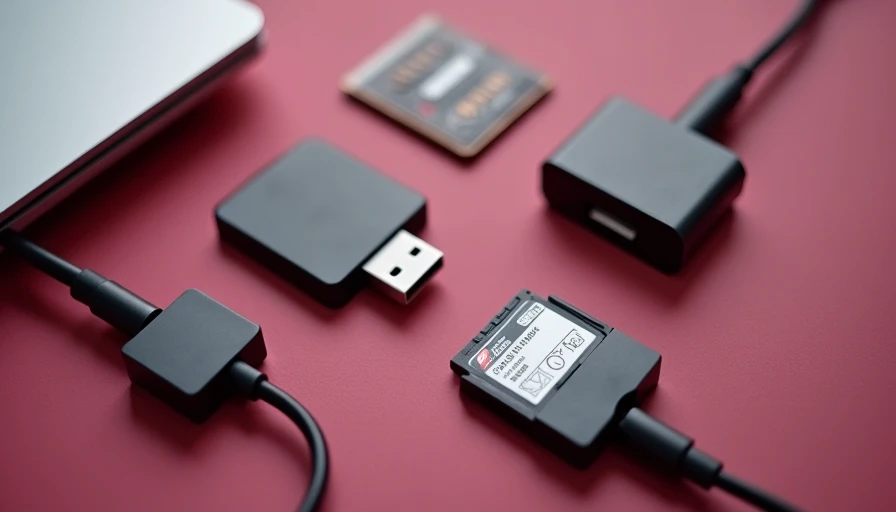

A USB hub is the small piece of desk hardware that determines whether your home office feels engineered or improvised. Add a webcam, microphone, keyboard, external drive, and monitor to a modern laptop, and the built-in ports disappear quickly. The right USB hub keeps those connections organized without turning the back edge of your desk into a knot of adapters.
I think about this purchase the same way I think about a monitor arm or cable tray: start with the workflow, then buy the hardware that supports it. A USB hub is not automatically better because it has twelve ports or a brushed aluminum shell. Port type, power delivery, cable length, heat management, and placement matter more than the marketing photograph.
Start with the ports you actually use
Count your devices before shopping. A basic remote-work station might need one USB-A port for a keyboard, another for a mouse receiver, USB-C for a phone, HDMI for a second display, and an SD card slot for occasional camera work. That setup already justifies a six-port model. A creator or consultant who moves large files may need two USB-C data ports, Ethernet, and a dedicated charger connection as well.
USB-A is the older rectangular connector still used by many keyboards, mice, headsets, and flash drives. USB-C is smaller and reversible, but the connector shape alone does not tell you the speed. Look for terms such as USB 3.2 Gen 1, which typically handles up to 5Gbps, or USB 3.2 Gen 2, which can reach up to 10Gbps under the right conditions. Your computer and peripheral must support the same capability.
An inexpensive USB hub with four USB-A ports can be the smarter buy for a desktop keyboard-and-mouse setup. Spending $70 on unused video outputs does not improve that workflow. On the other hand, a laptop owner who connects a display every morning should not settle for a data-only adapter and discover that HDMI is missing.
Choose powered or bus-powered hardware
A bus-powered hub draws electricity from the computer. It is compact, often costs $15 to $35, and works well for low-demand accessories such as a mouse, keyboard, license dongle, or basic flash drive. It is easy to carry between a home desk and a coworking space.
A powered USB hub includes its own AC adapter. That extra supply is useful when several devices run at once, particularly external hard drives, audio interfaces, LED accessories, or high-speed storage. Expect to spend roughly $35 to $100 for a dependable powered model from brands such as Anker, Plugable, or Satechi. The power brick takes space, but it prevents the computer from shouldering every connected device.
Do not confuse power delivery with unlimited laptop charging. On a USB-C dock, Power Delivery, often written as PD, sends charging power to the host computer through a compatible charger and cable. A dock advertised at 100W may reserve some power for itself, so the laptop receives less than the headline number. That is normal. Match the dock's input rating to your laptop charger rather than assuming every USB-C cable performs the same way.
Put the hub where your hands need it
Desk layout changes how useful the accessory feels. If your laptop sits centered on a 48-inch desk, a short cable can keep the hub beside your dominant hand for plugging in a phone or card reader. If the laptop is elevated on a stand, a 12- to 24-inch host cable usually reaches more cleanly than the six-inch lead attached to a compact travel adapter.
A USB hub should not hang from a laptop port. The connector is not designed to carry the weight of a dangling block plus several cables. Place it on the desktop, attach it beneath the desk with removable adhesive or a purpose-built bracket, or route it through a rear cable grommet. Keep at least a few inches of ventilation around powered electronics, especially in a closed cable trough.
For a 10-by-11-foot office, I would keep the main charging and display connections at the rear of the desk and place the card reader or front-access USB-C port near the front corner. In a shared dining-room setup, a compact model with a detachable cable is easier to remove at the end of the workday than a permanently mounted dock.

Know when a dock is the better purchase
People often use USB hub and docking station as if they mean the same thing. They overlap, but a dock usually adds more substantial functions: multiple displays, Ethernet, audio, charging, and sometimes a dedicated power button. A simple hub primarily expands USB connectivity.
For a MacBook Air user who needs one monitor, keyboard, webcam, and occasional storage, a six-in-one USB-C hub around $40 to $80 may be enough. A Windows laptop user running two monitors, wired internet, and a power-hungry external drive should investigate a full dock. DisplayLink-based docks can support additional displays through software, while native video output depends on the computer's graphics and USB-C capabilities. Confirm compatibility before ordering.
Brand names help narrow the search, not replace the specification sheet. CalDigit often targets premium laptop docks, Plugable offers a broad range of practical connectivity products, and Anker covers everything from travel adapters to desktop hubs. Compare the actual port list, supported resolution, included charger, warranty, and return policy.
Make the cable plan part of the purchase
A USB hub solves only one section of cable management. Measure from the laptop port to the planned mounting point, then add a few inches for a relaxed bend. Sharp bends create strain at the connector and look messy against a desk edge. If your desk has a rear cable tray, run the display and power leads through it while leaving one accessible data port near the front.
Avoid stacking multiple unpowered adapters unless the manufacturer specifically supports that arrangement. Each added connection introduces another possible failure point and can reduce available power. If a webcam disconnects when an external drive starts, the issue may be power allocation rather than a defective camera.
A clean setup also needs labeling. I use small removable labels on the underside of a dock for monitor, charger, audio, and storage. That saves five minutes every time the laptop leaves the office and prevents the familiar trial-and-error routine of reconnecting four identical black cables.
A practical buying checklist
Before checkout, write down the computer model, operating system, number of displays, required resolution, and every peripheral that stays connected for a normal workday. Then check whether the computer supports video over USB-C; not every USB-C port does. Confirm whether the hub includes a charger or requires your existing laptop power adapter.
Choose bus-powered hardware for light accessories and portability. Choose an AC-powered unit for several drives, audio gear, or accessories that behave unreliably on laptop power. Prioritize a longer detachable host cable when the computer sits on a riser. For a permanent desk, pay for the ports you will use daily, not an impressive maximum count.
The best USB hub is the one that disappears into the workflow. Spend $25 on a straightforward adapter if that is all your desk requires, or spend $80 to $180 on a properly matched dock when charging, displays, and storage all matter. Mount it where the cables naturally want to go, verify the specifications against your computer, and your desk will feel less like a pile of accessories and more like a working system.